

Short answer: you can build a working automation without writing any code in about 45 minutes. Pick one small task you repeat every week, choose a trigger (the event that starts it) and one or more actions (what should happen next), then connect the apps in a visual tool like Make. In this guide we build a real one on free plans: a website enquiry form that alerts your team in Slack, saves the lead to Google Sheets and sends the person a thank-you email. It costs nothing to run for up to about 250 enquiries a month.
If you have never opened an automation tool before, good. This guide assumes nothing. If you already know which platform you want and just need to compare them, our Zapier vs Make vs n8n comparison is the better place to start.
Steps and plan limits checked in September 2026 against the official documentation of Make, Tally, Slack and Google. See the methodology note at the end.
What an automation actually is

Strip away the marketing and every automation is the same sentence: when this happens, do that. The tools just give each part a name.
- Trigger: the event that starts everything. “Someone submits my form.” “A new row appears in a sheet.” “An email arrives with an invoice attached.”
- Action: something the tool does in response. “Post a message in Slack.” “Add a row.” “Send an email.” One trigger can start several actions in a row.
- Data mapping: telling each action which piece of information to use. The name typed into the form goes into the Slack message, the email address goes into the “To” field of the email. This is the part people worry about, and it is mostly clicking on labels.
- Filter: an optional checkpoint between steps. “Only continue if the email address isn’t blank.”
Make calls a finished automation a scenario and each step a module. Zapier calls them a Zap and steps. n8n calls them a workflow and nodes. Different words, same idea.
Pick a boring task first
The most common reason a first automation gets abandoned isn’t technical. People pick something too ambitious, like “automate our whole sales process”, get lost halfway and decide automation isn’t for them.
A good first automation passes three tests:
- You do it by hand at least once a week. Otherwise you won’t notice when it saves you time, and you won’t notice when it breaks.
- The steps never change. If you need to make a judgement call each time (“is this lead worth replying to?”), leave that part to a person for now.
- Getting it wrong is cheap. A duplicated row in a spreadsheet is annoying. An invoice sent twice to a client is embarrassing. Start with the first kind.
Copying form entries into a spreadsheet, pinging your team when a lead comes in and sending the same “thanks, we got your message” email are almost perfect first projects. They are repetitive, predictable and low risk. That’s why we built exactly that.
What we’re building, and why we used Make
The workflow has one trigger and three actions:
- Trigger: someone fills in a contact form built in Tally.
- Action 1: post the enquiry in a Slack channel so the team sees it straight away.
- Action 2: add it as a new row in a Google Sheet, so you have a running list of every lead.
- Action 3: email the person to confirm you received their message.
We built it in Make for one plain reason: it’s the only one of the big three where this exact workflow runs on the free plan. Zapier’s free plan only allows two-step Zaps, meaning one trigger and a single action, and gives you 100 tasks a month. Our workflow has three actions, so on Zapier it needs a paid plan. n8n can do it for free, but only if you run it on your own server first, which is a project in itself (we cover that in our n8n self-hosting guide).
Make’s free plan gives you 1,000 credits a month, two active scenarios and multi-step workflows, with no time limit and no card required. For a first automation, that’s plenty.
We used Tally for the form rather than Google Forms, and that choice matters more than it looks. We explain why in Step 1.
Before you start: the accounts you need
All of these are free. Open each one in its own tab before you begin, so you’re not signing up halfway through a step.
- Make account (free plan).
- Tally account (free plan, unlimited forms).
- Slack workspace with a channel for leads. We used one called
#new-leads. - A Google Sheet with a header row already typed in:
Date,Name,Email,Company,Message. Make reads these headers to know where each value goes, so type them before you connect anything. - An email account to send from. Read the next paragraph before you pick one.
One gotcha with Gmail. If you send from an address on your own domain through Google Workspace (like you@yourcompany.com), Make connects to it in a couple of clicks. If you send from a personal @gmail.com address, Make’s own documentation says you first have to create your own OAuth client in Google Cloud Console. It’s free and takes roughly 15 minutes, but it’s the step where most beginners get stuck. If that sounds like more than you want today, use Make’s generic Email app with an SMTP connection instead, or do Steps 1 to 4 now and add the email step later. The automation is still useful without it.
Step 1: Create the form in Tally
Create a new form in Tally with four questions:
- Name (short answer, required)
- Email (email field, required)
- Company (short answer, optional)
- What can we help with? (long answer, required)
Publish it and submit one test answer yourself, using your own email address. You’ll need a real response in a minute so Make has something to look at.
Why Tally and not Google Forms? Two reasons. First, Tally’s Make trigger is instant: Tally pushes each new response to Make the moment it’s submitted. Google Forms’ trigger in Make is a polling trigger, which means Make has to keep checking for new responses on a schedule, and on the free plan that schedule can’t run more often than every 15 minutes. Second, and this is the one nobody warns you about, Make counts every one of those checks as a credit, even when there’s nothing new. A trigger that checks every 15 minutes, all month, uses around 2,880 credits just looking. The free plan only has 1,000. An instant trigger costs nothing while it waits.
If you already collect leads with Google Forms and don’t want to switch, it still works. Just set the schedule to once an hour or once a day and accept the delay.
Step 2: Start a scenario in Make and add the trigger
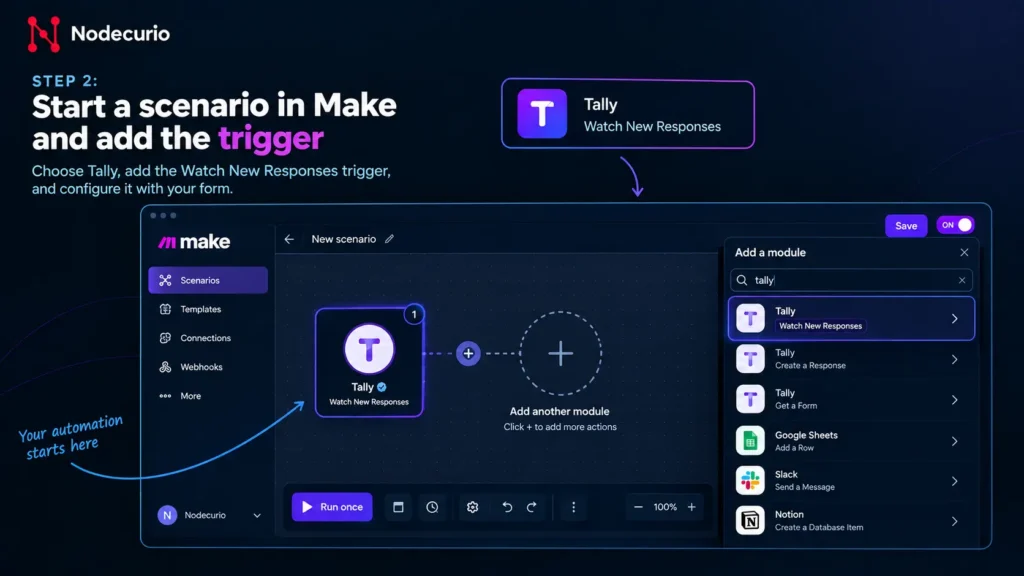
- In Make, go to Scenarios and click Create a new scenario. You’ll see an empty canvas with a large plus sign in the middle.
- Click the plus sign, search for Tally and choose Watch New Responses.
- Click Create a webhook, give it a name you’ll recognise later (for example, Website enquiry form), then connect your Tally account when asked.
- Choose your form from the list and save.
- Click Run once at the bottom left, then submit your Tally form again in another tab.
A small bubble should appear above the Tally module. Click it. This is the output bundle, the raw data Make received, and it’s worth a proper look. Tally sends your answers as a list of fields, so you’ll see each question with its label and the value your test submission typed in. Everything you map in the next steps comes from here.
If the bubble doesn’t appear, the usual cause is submitting the form before clicking Run once. Click Run once, then submit.
Step 3: Send the Slack alert
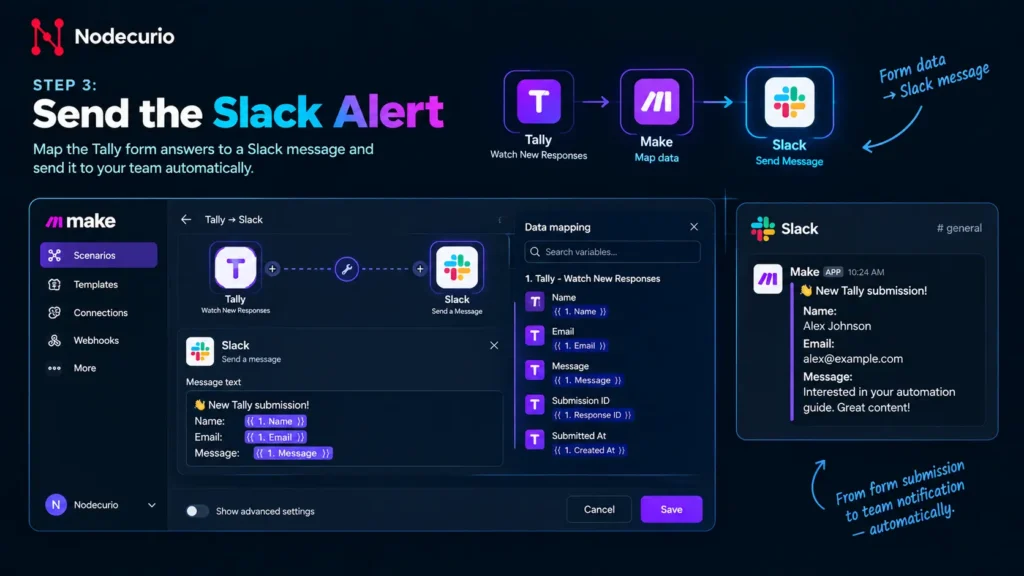
- Hover over the right-hand edge of the Tally module and click Add another module.
- Search for Slack and choose Create a Message.
- Connect your Slack workspace and pick your
#new-leadschannel. - Click into the Text field. A panel opens showing the data from Step 2.
This is data mapping, and it’s where the “no code” promise holds up. Type your message as normal, and wherever you need a value from the form, click it in the panel instead of typing it. Ours looked like this:
New enquiry from [Name] ([Company])
Email: [Email]
Message: [What can we help with?]
Each item in square brackets is a clickable value from the Tally output, not text you type. In the editor they show up as coloured tags.
Tip: map by the question label, not by position, if the panel offers both. If you later reorder the questions in Tally, mappings tied to a position can quietly point to the wrong answer. Whichever way you map, retest after any change to the form.
Before moving on, add a filter. Click the small line between the Tally and Slack modules, choose Set up a filter, and add a condition: Email – Does not contain – test. Now your own test entries won’t reach the team channel once you’re live. In Make, a filter doesn’t use credits, so there’s no reason to skip it.
Step 4: Add the enquiry to Google Sheets
- Add another module after Slack: Google Sheets – Add a Row.
- Connect your Google account, then choose your spreadsheet and the sheet (tab) name.
- Set Table contains headers to Yes. Make now shows one field per column header you typed earlier.
- Map each column: Name to the Name answer, Email to Email, and so on.
- For Date, pick the submission time from the Tally output, or use Make’s built-in
nowvalue.
If the column fields don’t show up, the sheet almost certainly has no header row, or the headers aren’t on row 1. Fix the sheet, then click the refresh arrow next to the sheet name in Make.
Step 5: Send the follow-up email
- Add one more module: Gmail – Send an Email (or Email – Send an Email if you’re using SMTP).
- In To, map the Email answer from the form.
- Write a short subject and body. Map the person’s name into the greeting so it doesn’t read like a robot wrote it.
Keep this email honest and simple. Something like: “Hi [Name], thanks for getting in touch. We’ve received your message and someone from the team will reply within one working day.” Don’t promise a timeframe your team can’t keep. This email goes out automatically at 2am on a Sunday too.
Step 6: Test it properly, then switch it on
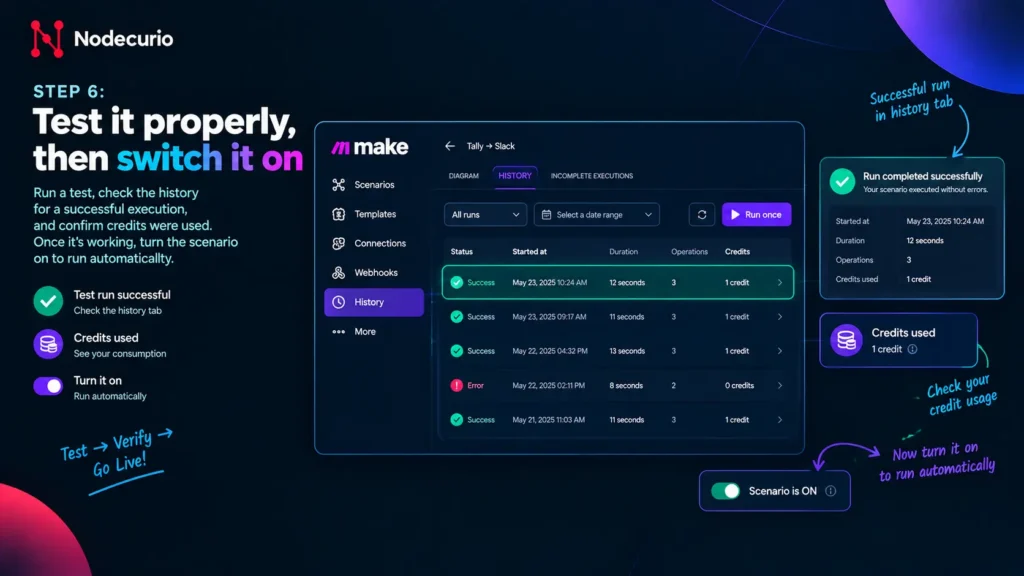
Most first automations “work” on the test and then fail on the first real lead. Ten minutes of testing avoids that.
- Click Run once, then submit the form with realistic details. Use a real email address you can check, but not one containing the word “test”, or your filter will stop it.
- Check all three results: the Slack message, the new row in the sheet and the email in the inbox.
- Submit once more with the optional Company field left blank. Blank fields are where mappings usually break. Make sure the Slack message and the row still look right.
- Open the History tab of the scenario. Every run is listed with how many credits it used. A failed run shows exactly which module stopped and why.
- When all three results are right, turn the scenario ON using the toggle at the bottom left, and make sure its schedule says Immediately as data arrives.
Then delete your test rows from the sheet so the lead list starts clean.
What it costs on the free plan
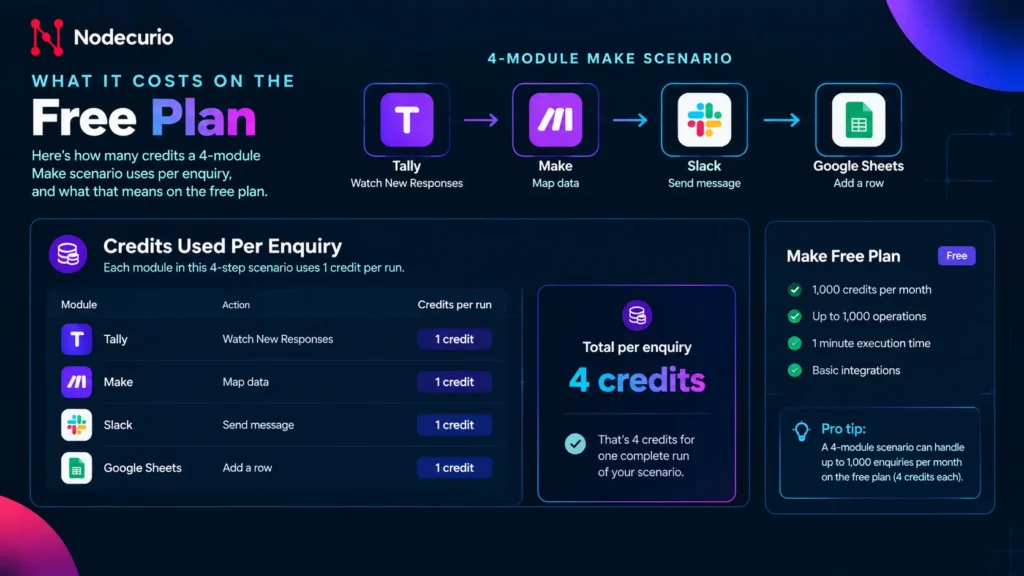
Make bills in credits, and a standard module uses one credit each time it runs. Our scenario has four modules, so each enquiry costs four credits:
| Module | Credits per enquiry |
|---|---|
| Tally: Watch New Responses (trigger) | 1 |
| Slack: Create a Message | 1 |
| Google Sheets: Add a Row | 1 |
| Gmail: Send an Email | 1 |
| Filter | 0 |
| Total | 4 |
With 1,000 free credits a month, that’s roughly 250 enquiries a month for free. Because the trigger is instant, nothing is spent while the form sits quiet. If you outgrow that, Make’s Core plan starts at about $9 a month billed annually for 10,000 credits, which covers around 2,500 enquiries with this scenario. Our Zapier vs Make vs n8n pricing breakdown shows how this compares with the other two platforms at higher volumes.
Pricing verified: September 2026.
Five mistakes that break first automations
1. Testing with fake data that looks nothing like real data
Typing “asdf” in every field proves the connection works. It doesn’t prove the message makes sense when someone writes three paragraphs, leaves a field empty or uses an accent in their name. Test with something that looks like a real enquiry.
2. Changing the form after the automation is live
Renaming, deleting or reordering a question can break a mapping without any warning. The scenario keeps running and quietly sends the wrong value, or nothing, into that field. Any time you edit the form, run one test submission afterwards.
3. Nobody checks when it fails
Automations fail quietly. A connection expires, a password changes, a sheet gets renamed. Make emails the account owner when a scenario errors, so make sure that inbox is one somebody reads. Glance at the History tab once a week for the first month.
4. Using a polling trigger on the free plan without doing the maths
As covered in Step 1, a trigger that checks for new data every 15 minutes can use almost three times the free plan’s monthly credits on its own. If an instant trigger is available for your app, use it. If not, check less often.
5. Automating a process that isn’t settled yet
If your team still argues about who handles new leads, automating the hand-off just makes the confusion faster. Agree on the process first, then automate it.
Where to go from here
Once this is running, the same pattern of trigger, actions, mapping and a filter covers most of what small teams automate. A few natural next steps:
- Add a second scenario. The free plan allows two active ones. A daily Slack summary of yesterday’s leads from the sheet is an easy one.
- Compare platforms properly before you pay for anything. Our Zapier vs Make vs n8n comparison covers learning curve, integrations and AI features side by side.
- Need an app, not just a workflow? If your lead list is outgrowing a spreadsheet, our guide to the best no-code app builders covers tools like Airtable and Softr that plug straight into scenarios like this one.
- Running a lot of volume? Once you’re into thousands of runs a month, self-hosting can be far cheaper. The n8n self-hosting guide walks through the setup and the real monthly cost.
Frequently asked questions
Can I build an automation without knowing how to code?
Yes. Tools like Make, Zapier and n8n are built around a visual editor where you pick apps from a list and click on the data you want to pass between them. The only skill you really need is describing the task clearly: what starts it, and what should happen next, in order.
Which automation tool is best for a complete beginner?
Zapier has the gentlest first few minutes, but its free plan only allows one action per automation. Make takes a little longer to learn and lets you build multi-step automations for free, which is why we used it here. n8n is the most flexible but has the steepest learning curve, especially if you self-host it.
Is Make really free?
Yes. Make’s free plan has no time limit and doesn’t need a card. It includes 1,000 credits a month and two active scenarios. Scheduled scenarios can run at most every 15 minutes on the free plan, while instant triggers run as soon as data arrives.
Can I build this workflow in Zapier’s free plan?
Not in one Zap. Zapier’s free plan allows two-step Zaps only, one trigger and one action, with 100 tasks a month. You could split it into three separate Zaps that each start from the same form, but that uses three times as many tasks and is harder to manage. For more than one action, Zapier needs a paid plan.
How long does it take to build a first automation?
Plan on 30 to 60 minutes for this one, including creating accounts. Most of that time is connecting apps and testing. The second automation you build usually takes about a third of the time.
What is the difference between a trigger and an action?
A trigger is the event that starts the automation, such as a new form submission. An action is something the automation does in response, such as sending a Slack message. Every automation has one trigger and at least one action.
Why is my automation not running instantly?
Either the trigger is a polling trigger that checks on a schedule, or the scenario is scheduled rather than set to run immediately. On Make’s free plan, scheduled checks can’t run more often than every 15 minutes. Use an instant (webhook) trigger if your app offers one.
Can I use Google Forms instead of Tally?
Yes. Make has a Google Forms trigger, but it’s a polling trigger, so it checks on a schedule rather than instantly, and each check uses a credit. On the free plan, set it to check hourly or daily to stay within your credits.
Methodology and verification
The steps in this guide were checked against the official help documentation of Make, Tally, Slack and Google in September 2026, including Make’s Tally, Google Sheets and Gmail module pages and the current free-plan limits of Make and Zapier. Module names and menu labels change from time to time, so if a button in your editor has a slightly different name, look for the closest match. Credit costs are calculated from Make’s published rule of one credit per standard module run and exclude AI modules, which are billed differently. Our fact-checking policy explains how we verify and date claims, and our editorial policy covers our independence.
Primary sources: Make pricing · Tally Make integration · Make Gmail app documentation · What’s included in Zapier’s Free plan.
Last verified: September 2026. Spotted a step that’s changed? Tell us and we’ll update it.